
How to Use Google Tasks: Calendar, Gmail and Limits (2026)
Here is a detailed guide on how you can use Google Tasks.
How to use Google Tasks with G-mail
As we said earlier Google gifted us all with Google Tasks, and it synced its essential products with the app. Not just Google Calendar but now you can sync your tasks with your G-mail too.
This feature is valuable given, making a list is everyone’s habit. No matter whether we are planning a trip, or a party. A simple to-do list comes in handy at those times.
How to Open Google Tasks
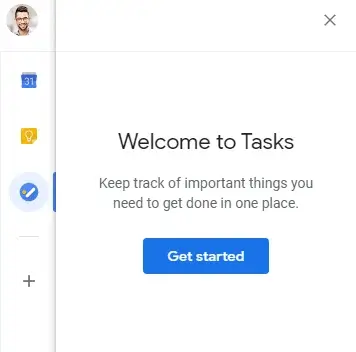
You might have never realized but Google Tasks had been staring right at your face when you opened G-mail. Let us show you how to open it.
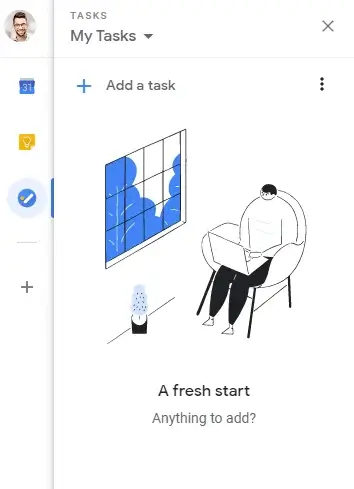
- Log into your Gmail
- Once you open your Mail, on the right, Click Tasks
- Click on the Add a Task button, or the “+” sign
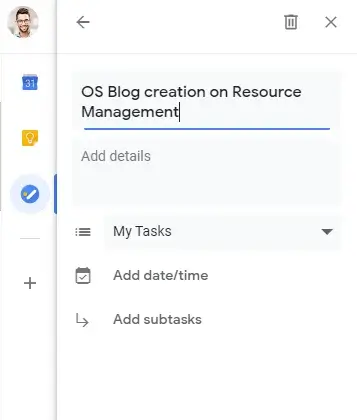
- Type your Task Title,
- Click on the Edit option, the pencil sign
- Add Title, Add description about Tasks
- Add it to a Task List if any
- Set Date & Time, choose the day, and the hour
- Also, set the task on repeat if you want to with – Daily, Weekly, Monthly or yearly
- Congratulations, you have successfully added your task.
How to Create a Task List
- Follow the same procedure, Login to your Gmail.
- Once you open your Mail, on the right Click Tasks
- Click the down arrow on My Tasks
- Select Create New list
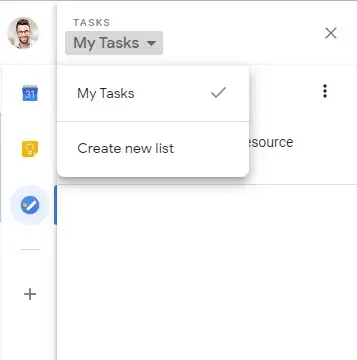
If you want to change the Task List of a Task then, you can do so by
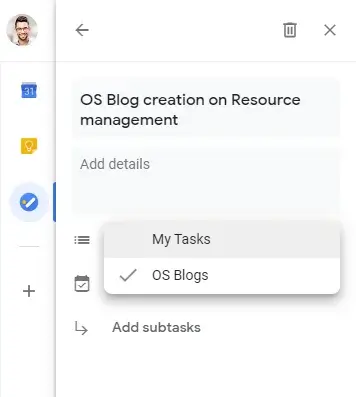
- Choosing the Task, Hover above the Pencil sign, which says “Edit Details“
- Click on the pencil sign
- Click on the Drop arrow, and choose the relevant Task List
Tasks Lists make categorizing your tasks easy.
Task lists your whole team can see
Google Tasks lists are private to you. Orangescrum gives the same simple lists with an owner, a due date and a comment on every task, shared with the team.
How to organize Tasks
Google Tasks doesn’t just have the “Tasks” option but it also has a sub-category, called the “Sub-task“. This option makes it easy and convenient to organize your tasks as per the hierarchy.
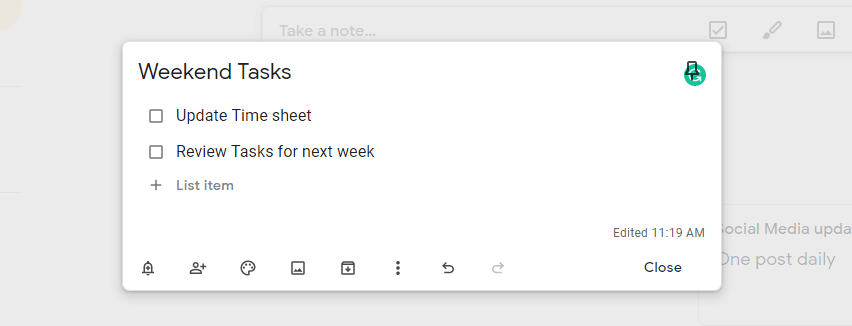
If you create a Task List titled “Work to get done this Weekend“, you can create two tasks under it, one is “Update Timesheet” and the other is the “Review Tasks for next week.” Instead of muddling those two together, you can create “sub-tasks” under each task.
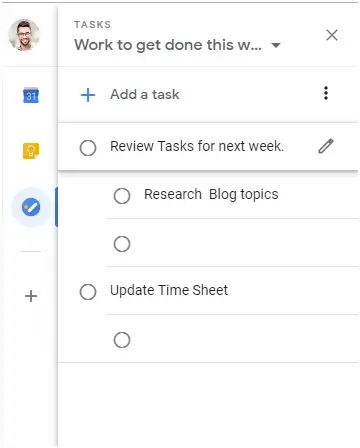
This is how you efficiently and simply organize your tasks on Google Tasks. It isn’t fancy, with confusing features. It has easy to pick up features that come in handy in day-to-day life.
Reorder Tasks
This bit is easy and as simple as Google can get.
- Open Google Tasks
- Click on the Task and move it to where you want.
You can manually order your tasks and also sort it out according to their Date.
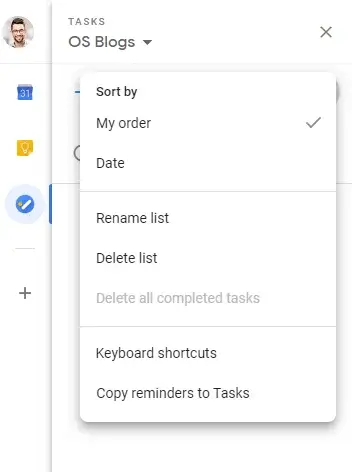
- Open Google Tasks
- On the right, click on the Tasks option
- Then Click on More, the three dots on the side of Add a Task.
- There will be an option “Sort By” – My Order and Date.
- Click My Order, if you want to set it manually.
- Select Date if you want the Task list in order of dates.
How to delete and complete a task
Google Tasks is a gift from Google to all. It is an efficient To-do list that can be used on a desktop, as well as a smart phone. Deleting a task is as easy as crossing off the task on a paper of To-Do list.
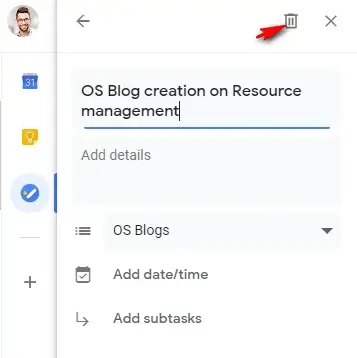
- Open Google Tasks.
- Hover above the pencil sign on the Task to be deleted.
- Click on the pencil sign, which says “Edit Details“.
- On, the top click “Delete“.
- If you want to cancel it, click “Undo” on the bottom
After completing a task on the To-do list what is it we do? We check it off or strike it off. Google Tasks also follows this human tendency of striking off tasks that are completed.
When you are done with a task you created, you can mark it complete.
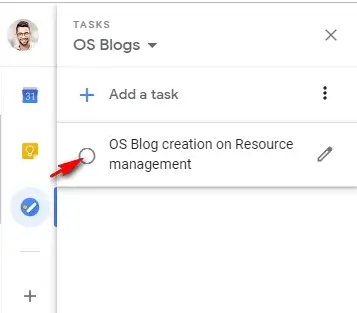
- Open Google Tasks.
- Hover above the Task you want to mark as complete.
- Specifically hover above the circle near the task
- It shows “Mark Complete“.
- Click on that, and mark it as complete.
- If you want to cancel it then click on “Undo” at the bottom.
Want to check which tasks are done?
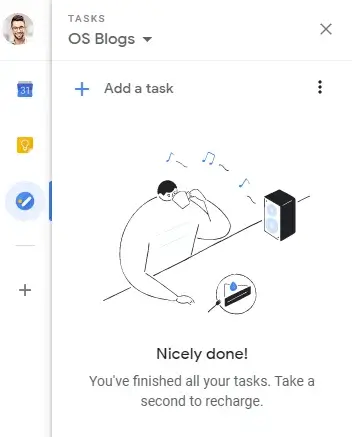
- Below the Tasks section, is a “Completed” section that has a Drop arrow.
- Click on the drop arrow.
- See all the tasks that are checked off
How to use Google Calendar with Google Tasks
What is the simplest way to make a time table? To organize your schedule according to your calendar. Google Tasks maybe the simplest form of the To-do list, but you can use Google Calendar and Google Tasks without switching between apps.
- Open Gmail.
- Click on Calendar
- On the Calendar, section select the “Open in New Tab” option.
- On the right-hand side of the screen, there are two other options, “Google Keep” and “Google Tasks“
- Choose Tasks
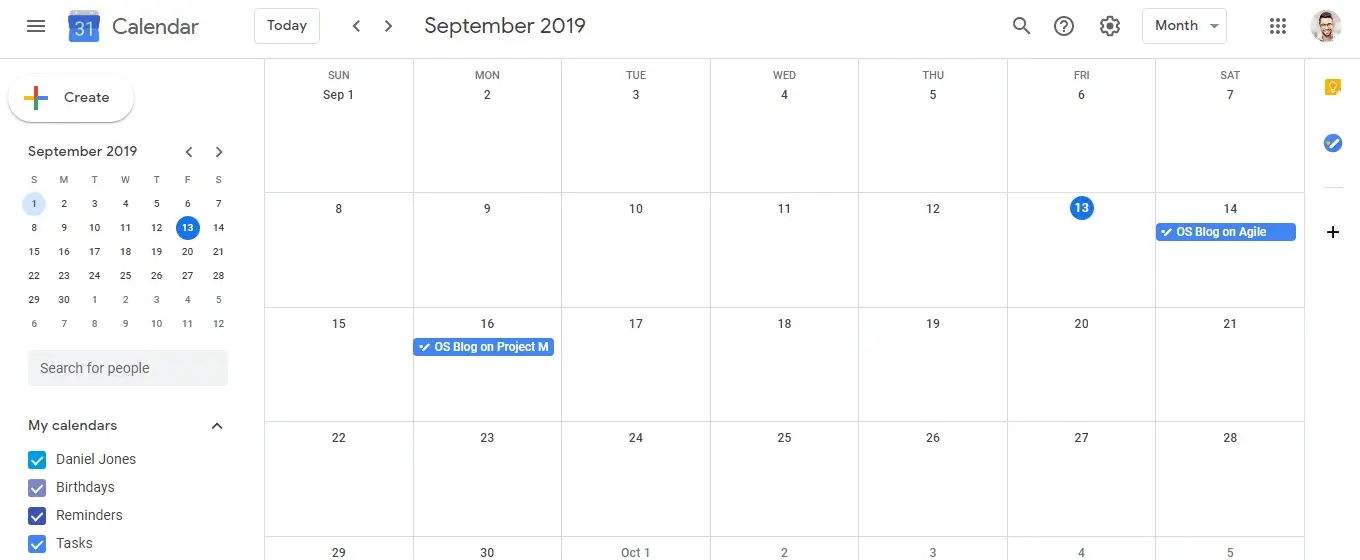
You get a calendar view of all your tasks for the day.
To-do apps mostly don’t provide a calendar within the app itself, but it is Google! You can sync your Calendar with GoogleTasks.
If you want to Edit the task from the Calendar itself you can do so too. Click on the respective task, and you can see a tile version of it.
There are options like “Edit Details“, “Delete” “Close“, “Mark Complete“, “View related email“.
Easily add an email as a task. If your work email id is in sync with your Google Tasks you can easily manage your tasks.
Here is how you can sync Google Tasks with G-mail without a hitch with just a Drag n Drop.
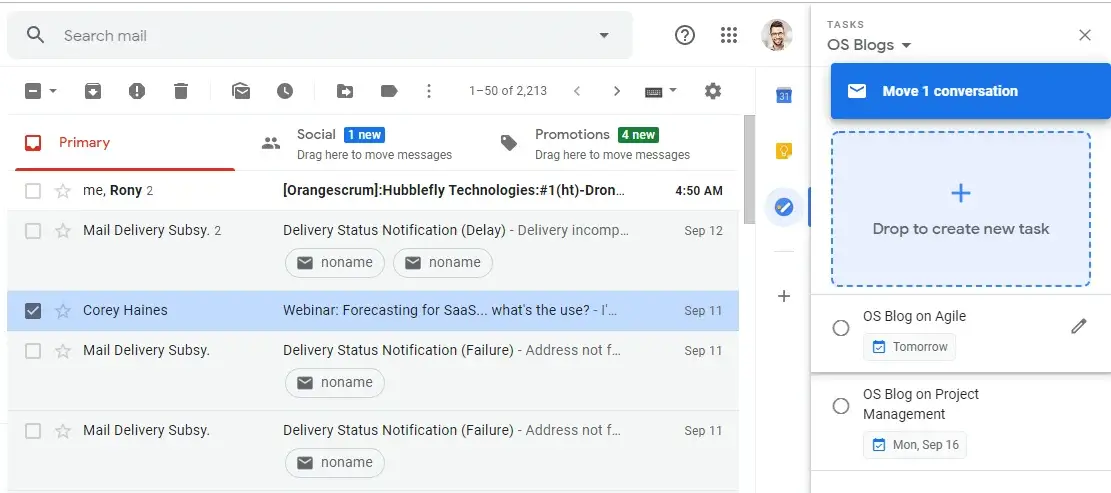
- Open Gmail
- Click on Google tasks
- Select the Mail in your Inbox which you want to create as a task
- Drag it and drop it on the “Add a New task” option
- A task is created automatically
- Add Date, Sub-Tasks and assign Task list.
The advantage of Google Calendar is, you can use it to create Reminders, Tasks, and Events. Just click on the Time Slot of a particular day and you can set a Task, Reminder or even an event.
Other than the much-used Google Calendar and G-mail, there is another app Google Keep that is under-utilized. But when coupled with Google tasks it becomes pretty useful.
Keep is used to take notes, just like sticky notes you use on your study table or your fridge. Google Keep is just digitized versions of quick notes or reminders.
A calendar for the whole project
Every task, owner and dependency in one view, not one person's list. Start from a ready-made plan instead of a blank page.
How to use Google Keep along with Google Tasks
- Open G-mail
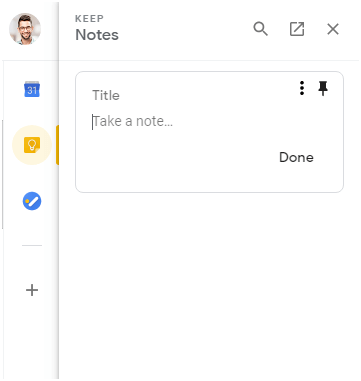
- Click on the Keep
- Choose the “Open in a new tab” option.
- Click on the “Take a Note“
- Fill up the required details- “Title Note“, “Write a Note“
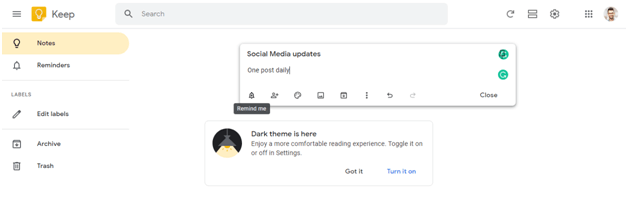
- Click on the bell option, to add the note as a “Reminder“
- Set the Task you want to be reminded of. Customize the reminder with respects to Date & Time and Place.
- Change the color of the note to give a feeling of sticky notes.
- Add relevant Image if you have to.
If you want to make the Note a Checklist, then click on the three dots- “More” option. Select the “Show checkboxes” option. Add Title to the note and items. It is a nice way to create a grocery list.
When you open Google Calendar, all your Tasks, Notes, Reminders and events pop up in a single place. If you are obsessed with organizing and being on top of your schedule then Google Tasks is your perfect companion for Task management.
How to manage Google Tasks with Google Shortcuts
- New Task- Once you type a Task Title you can press “Enter“
- Move a Task- Ctrl + Up, shifts your selected task up
Ctrl + Down, shifts the selected task down. - Task Details- To view Task details press Shift + Enter
- To close Task Details press Esc
- Mark a Task as complete- Press Alt + Enter
- Remove a completed Task from the list – Alt + Shift + Enter
Benefits of using Google Tasks
- Managing tasks manually, with sticky notes on your desk isn’t the way of handling projects. Google Tasks is a free task management tool that manages all your tasks in one place.
- Use Google Calendar and Google Tasks side by side. You do not need to switch between windows, but can use Tasks, while on the Google Calendar. Both seamlessly blend into each other to provide a smooth user experience.
- Sync your G-mail with Google Tasks. All the work mails you receive in your Inbox will automatically become tasks if you just drag n drop it in “Add a new task” option. It saves you a lot of complications.
- Organize your tasks effectively with the sub-tasks and Task List options.
- Add recurring tasks to your lists, like when you have to publish a blog post daily.
Google Tasks vs Orangescrum: what changes for a team
Google Tasks works well for basic, personal task management. The limits appear the moment a second person needs to see the list. Here is the honest comparison, and a fuller one on our Google Tasks alternative page.
| Need | Google Tasks | Orangescrum |
|---|---|---|
| Assign a task to another person | No, lists are personal | Yes, with an owner and watchers |
| Priority and status | No | Yes, with custom workflows |
| Sub-tasks | One level | Sub-tasks, checklists and dependencies |
| Time tracking | No | Built in, with timesheets |
| Files and comments on a task | No | Yes |
| Reports and dashboards | No | Yes |
| Calendar | Google Calendar, personal | A project calendar for the team |
| Mobile | Yes | Yes, iOS and Android |
| Self-hosted option | No | Yes, plus a free open-source edition |
| Price | Free | Free open-source edition; cloud plans from $29 a month with unlimited users |
How Orangescrum imports Google Tasks and keeps them updated
There is no one-click connector between Google Tasks and Orangescrum, and that is deliberate: Orangescrum does not pull data through another vendor's API. The move is an export, an import with the columns mapped for you, and then an assistant that can add and update tasks from wherever you are working.
Step 1: Export your Google Tasks
- Google Takeout. Open Google Takeout, select only Tasks, and download the archive. Each list arrives as a JSON file with the task title, notes, due date and completion state.
- Google Sheets, the simpler path. Copy each list into a sheet, one row per task, with columns for title, notes, due date and list name. Download as CSV, or upload the sheet's export directly; Orangescrum converts spreadsheets on upload.
Step 2: Import, with the columns matched for you
- Upload the CSV, XLS or XLSX file in Orangescrum. The importer works out which column is which: headings such as assignee, owner or assigned to are recognized as the same field, and you can change any mapping it proposes.
- Check the preview. Nothing is written until you confirm, so a wrong column costs a second upload and not a clean-up.
- Tasks, sub-tasks, time logs and epics all have an import path, so a Google Tasks list with sub-tasks arrives with its hierarchy intact. The full guide is at data import and migration.
Step 3: Create and update tasks from anywhere, with MCP
The habit Google Tasks built is adding a task from wherever you are: Gmail, Calendar, your phone. Orangescrum keeps that habit for the team through its MCP server. Connect an AI assistant once, then create tasks, change status, assign people and log time by asking, from inside the tool you already have open.
- Works with Claude Desktop, Cursor, VS Code with GitHub Copilot and the OpenAI Codex CLI. Setup is an API key and one configuration snippet per client.
- The assistant can read and change projects, tasks, time logs and users. Ask for a task and it is created with the owner, the due date and the project you named.
- Two packaged workflows ship with it: a daily standup and an overdue report, available as slash commands in clients that support them.
Setup steps and the tool list are in the MCP guide in the Help Centre. Google Tasks and Gmail keep working during the move. Nothing is deleted on the Google side.
Beyond the to-do list
Owners, priorities, time tracking and reports, with a free open-source edition you can host yourself.
Google Tasks FAQ
Is Google Tasks free?
Yes. Google Tasks is free with any Google account and is included in Gmail and Google Calendar.
Can I share a Google Tasks list with someone else?
No. Google Tasks lists are personal. To share tasks with a team you need a task manager built for teams, where every task has an owner.
Does Google Tasks work with Google Calendar?
Yes. Tasks with a date appear in Google Calendar, and you can create and edit tasks from the Calendar side panel.
Can I turn an email into a task?
Yes. Open Tasks in Gmail and drag the email onto the Add a task option. The task keeps a link back to the email.
What are the Google Tasks keyboard shortcuts?
Enter creates a task. Ctrl plus Up or Down moves it. Shift plus Enter opens the details. Alt plus Enter marks it complete. Alt plus Shift plus Enter removes a completed task from the list.
Can I import Google Tasks into Orangescrum?
Yes, through an export. Download your lists with Google Takeout or copy them into Google Sheets, then upload the CSV or spreadsheet. Orangescrum matches the columns automatically, shows a preview, and imports tasks with their sub-tasks. After the move, the MCP server lets an AI assistant add and update tasks from wherever you work.
When is Google Tasks not enough?
When more than one person works on the list. Google Tasks has no assignment, no priority, no time tracking and no reports, so a team outgrows it as soon as work must be tracked across people.